Windows
Windows 10 and 11 · x64 · .msi
An installer that needs no administrator rights. It adds UpNext and UpNext (big screen) to the Start menu. The builds aren't code-signed yet, so SmartScreen asks first: choose More info, then Run anyway.
Tell UpNext what you're in the mood for. It suggests a few games from your own library that fit, and says why.
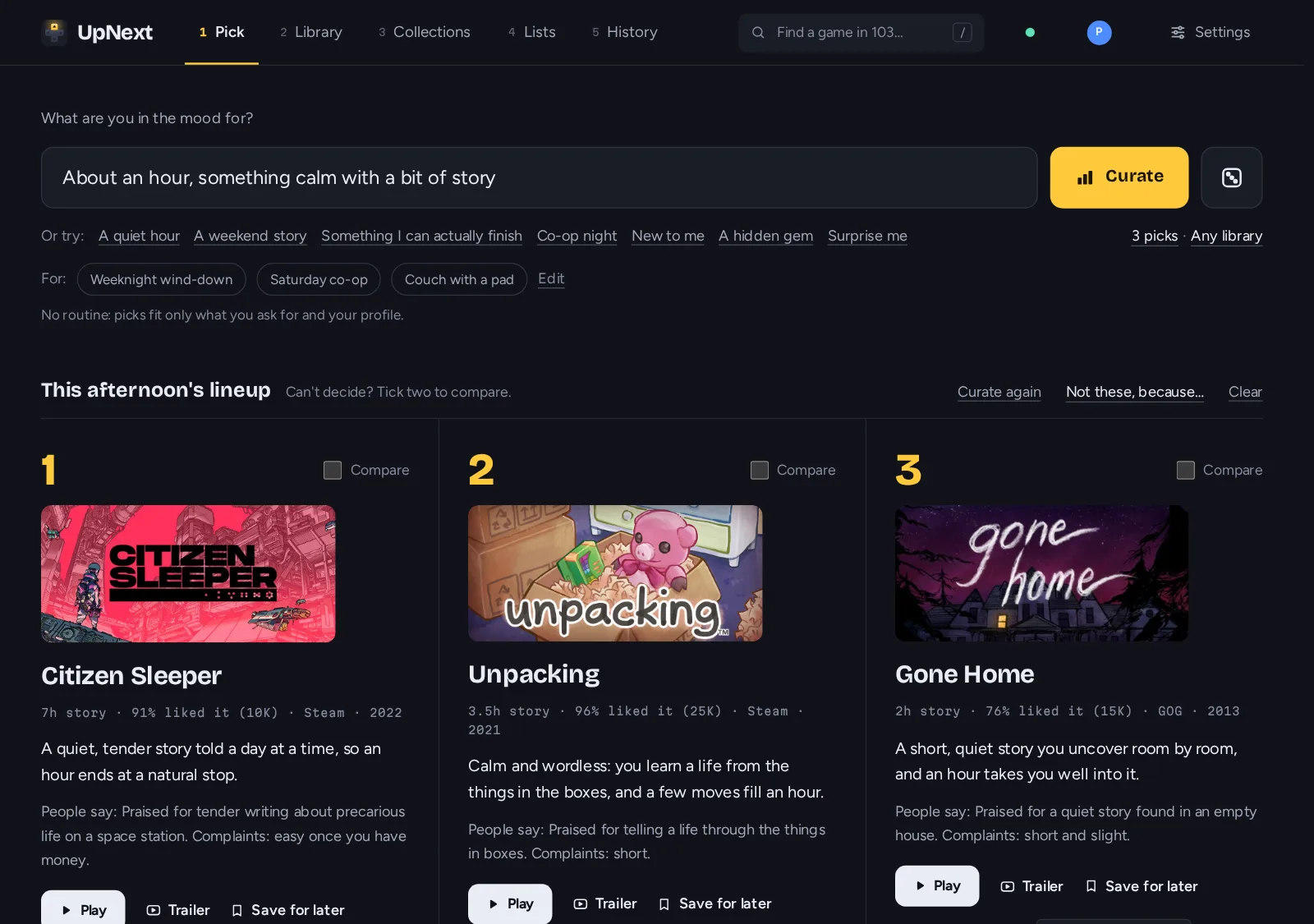
The Pick page on a made-up library. Cover art belongs to the games' publishers.
How it works
UpNext reads your libraries from Steam, Epic, GOG, Amazon, the EA app and Ubisoft Connect into one list.
Then it looks up each game's genres, length and what players say.
Ask in your own words, or start from one of these:
1Unpacking3.5h story · 96% liked it · Steam
2A Short Hike1.5h story · 98% liked it · Steam
3Baba Is You12h story · 97% liked it · Steam
Each pick says why it fits. Press Play to start it.
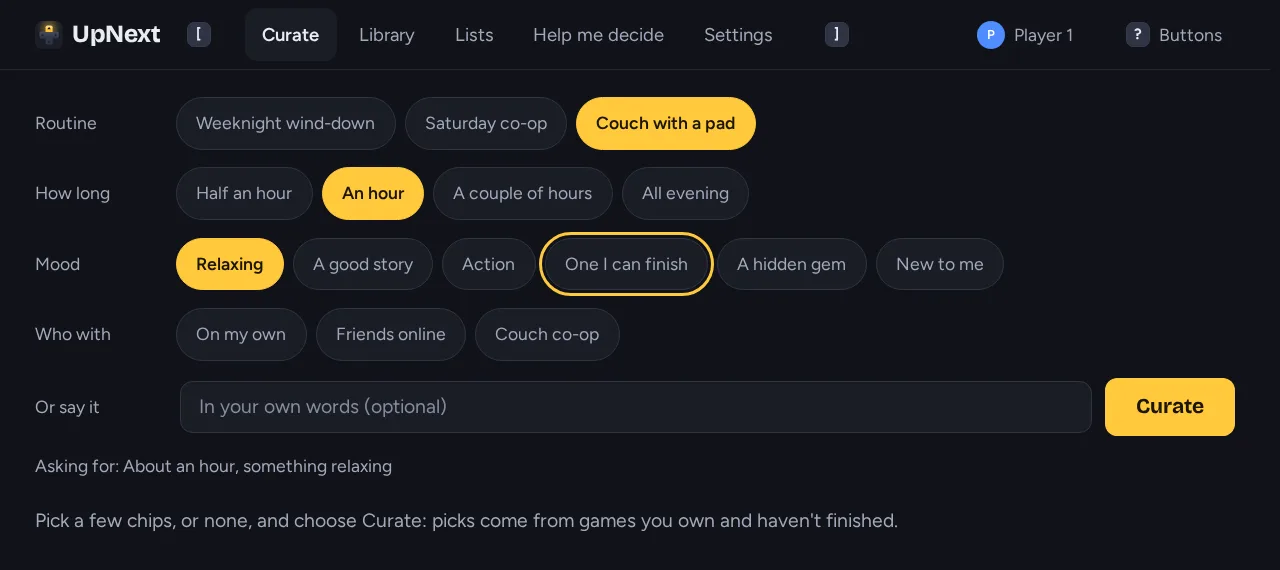
Big screen
Big screen is UpNext with large type and one focus you move with a gamepad, the arrow keys or a TV remote. Use it on a Steam Deck in Gaming Mode, on a Windows handheld, or on the TV in Big Picture.
Add it to your Steam library and start it like any other game.
What's inside
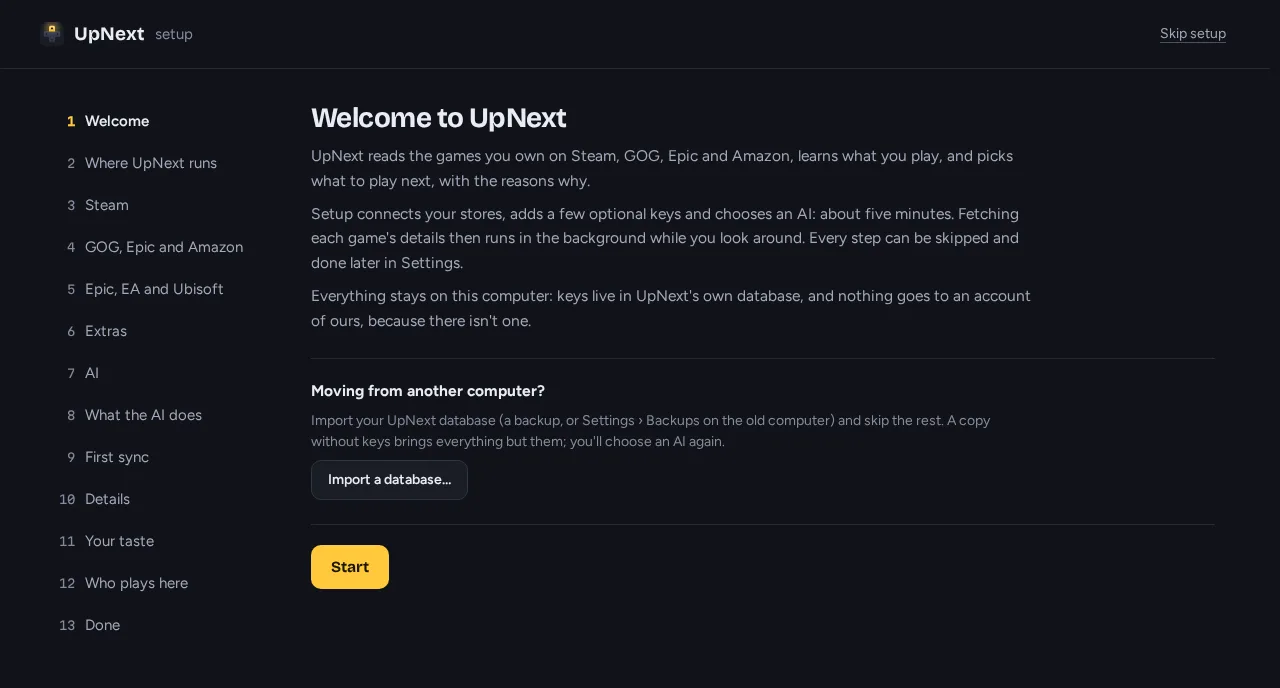
Your AI, or none
The suggestions come from an AI you choose and set up yourself. Without one, UpNext still picks from its own ranking.
Privacy
Everything is kept in a database on your own machine. No accounts, no ads, no analytics, and this site has no trackers either.
Get UpNext
UpNext runs on Windows, Linux or a home server, and every other device in the house can open it in a browser or the Android app.
Windows 10 and 11 · x64 · .msi
An installer that needs no administrator rights. It adds UpNext and UpNext (big screen) to the Start menu. The builds aren't code-signed yet, so SmartScreen asks first: choose More info, then Run anyway.
.deb · .rpm · x86_64 and arm64
Packages for Debian, Ubuntu, Fedora and the distributions built on them. Elsewhere, use the release's archive or Flatpak. One command installs the right one for your distribution:
curl -fsSL https://upnext.games/install.sh | shPKGBUILD · x86_64 (builds on aarch64)
Each release has a PKGBUILD for upnext-bin and a ready-built package for pacman, for Arch and the distributions built on it, like CachyOS. curl -fsSL https://upnext.games/install.sh | sh installs the pacman package too.
io.github.zytocc.UpNext · x86_64
For any Linux with Flatpak: a single file on the release page that you install with one command.
flatpak install --user ./upnext-<version>-x86_64.flatpakSteamOS 3 · Flatpak · big screen
Install the Flatpak in Desktop Mode, add UpNext to Steam as a non-Steam game with --big-screen, and it opens with the controller layout in Gaming Mode.
ghcr.io/zytocc/upnext · amd64 and arm64
For a home server or a NAS: the server and web UI, without the app window.
git clone https://github.com/zytocc/upnext && cd upnext
docker compose -f contrib/docker/compose.yaml up -d
docker logs upnextAndroid 8 or later · phone, tablet, TV
Use UpNext on your computer from the couch. The app finds your computer on the network, and you allow it once there. Games still start on the computer.
Any browser · your home network
Turn on Allow other devices in Settings, and a laptop, tablet or phone in the house opens UpNext in its browser. Each one asks once, and you approve it on the computer.
Rust 1.90+ · Node 22.18+
Build it yourself on Linux or Windows. The source is public under the MIT or Apache 2.0 licence, and contributions are welcome.